Wall Display
 Steven Pal • 3 min read • November 12, 2026
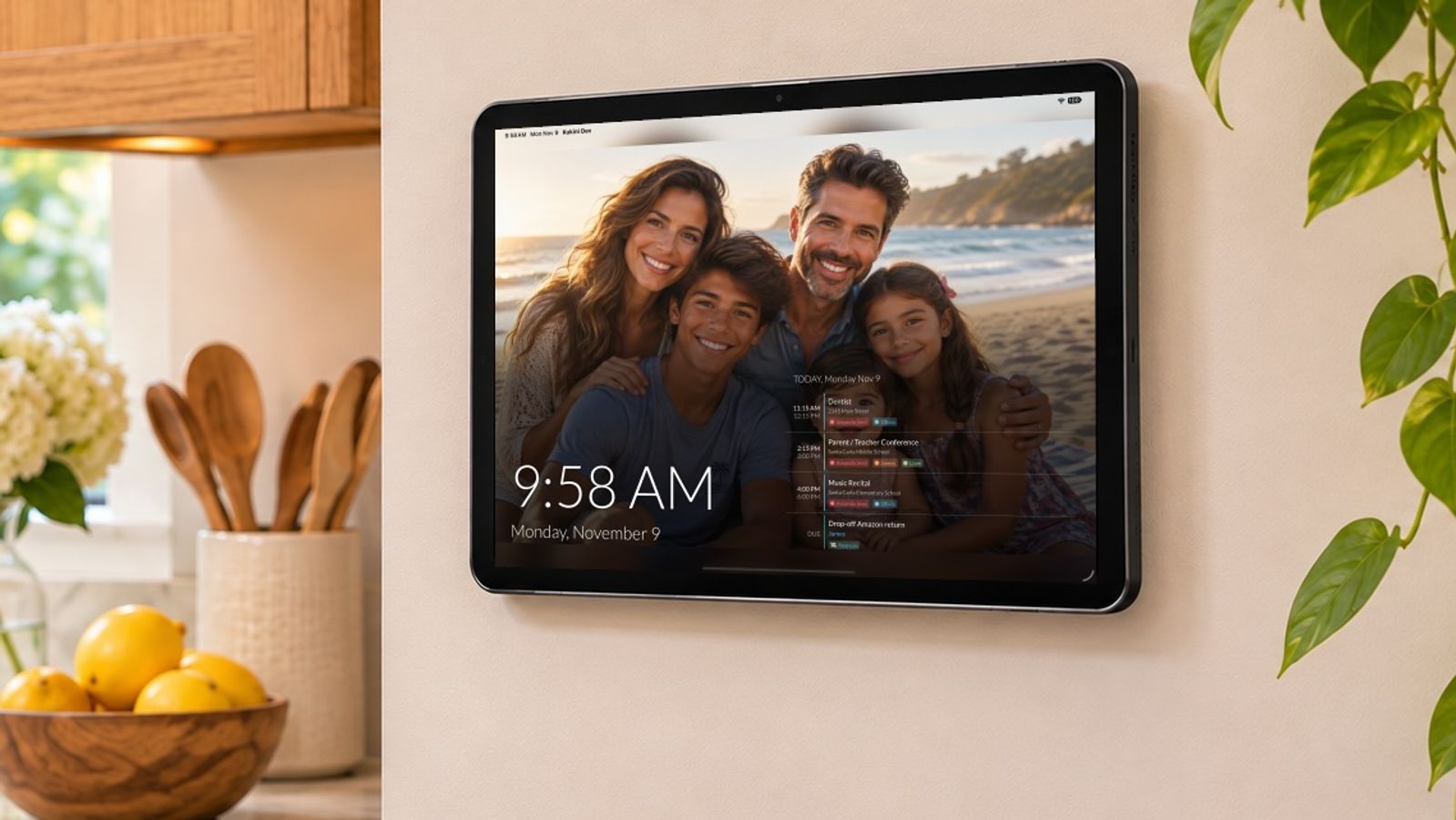
Many families have an old iPad, Android tablet, or phone sitting in a drawer. With Wall Display, it can become an always-on family display for the kitchen wall, the counter, or the nightstand.
When nobody's using Kukini, the screen shows your family photos, a big clock, and today's schedule. Tap it, and the whole app is right there. There's no new hardware to buy, and it's free in every Kukini plan.
Wall Display is launching as a beta, so we'd love to hear how it works in your home.
A screensaver worth looking at

Turn on Wall Display mode, and after a few minutes without a touch, Kukini switches to a full-screen display:
- A big, clear clock and date, readable from across the room.
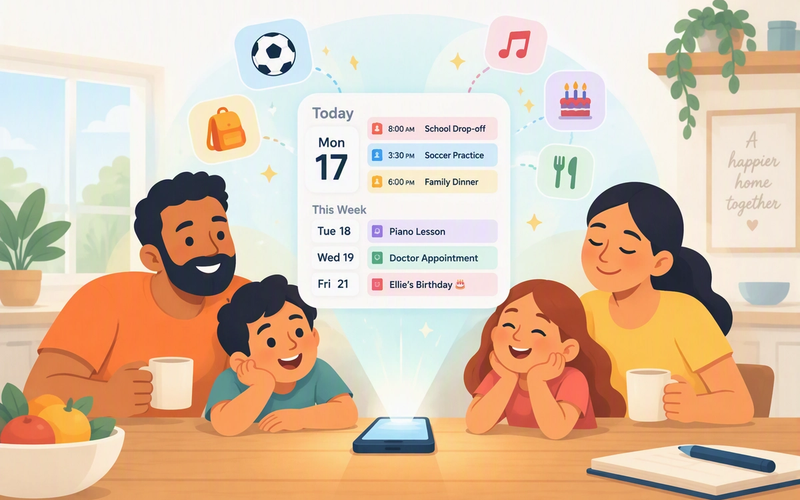
- Your Today & Upcoming calendar, with appointments, to-dos, chores, meals, and birthdays. When someone adds soccer practice from their phone, it shows up on the display right away.
- A layout that fits your screen: side by side on a landscape iPad, stacked on a phone or portrait tablet.
Tap anywhere to pick up right where you left off. The tap only wakes the screen, so nothing opens by accident. When you walk away, the screensaver comes back on its own.
Your family photos, front and center

The new Wall Display Gallery is a shared photo album just for your displays. Anyone in the family can add photos from their phone, tablet, or the Kukini web app, and they appear on every display in your home.
Photos change every few minutes and are shown in full, never awkwardly cropped, over a soft blurred backdrop. Prefer something simpler? Each display can use one of three built-in backgrounds instead.
Every plan includes one gallery photo, and Premium families can add up to 30.
Built to stay on all day

- Quiet hours: from 10pm to 6am, the photos and calendar step aside for a simple, dim clock on a black screen. It won't light up the kitchen after bedtime, and on a nightstand it makes a great bedside clock.
- Burn-in prevention: the time and calendar drift slowly by a few pixels, and photos rotate through the day, so OLED screens stay protected. You'll never notice it moving.
- Only on the display: Wall Display mode is a setting on each device, so your own phone keeps working normally.
Getting started
1. Update Kukini to the latest version on the iPhone, iPad, or Android device you want to use.
2. On that device, go to Settings > Wall Display Mode, turn it on, and choose how long to wait before the screensaver appears. Tap Preview Screensaver to see it right away.
3. Add photos in Settings > Wall Display Gallery, from any device or the web app.
For the full walkthrough, including battery tips and how to lock the device to Kukini with Guided Access or App Pinning, see our Wall Display setup guide.
Tell us how it goes
Wall Display is in beta. It's been through our testing on iPhone, iPad, and Android, but every home and every device is different. Dust off that spare tablet, give it a try, and email us at support@kukiniapp.com. Tell us which device you're using, how long it's been running, and anything that didn't work as expected.